
"Where do I tap next?"
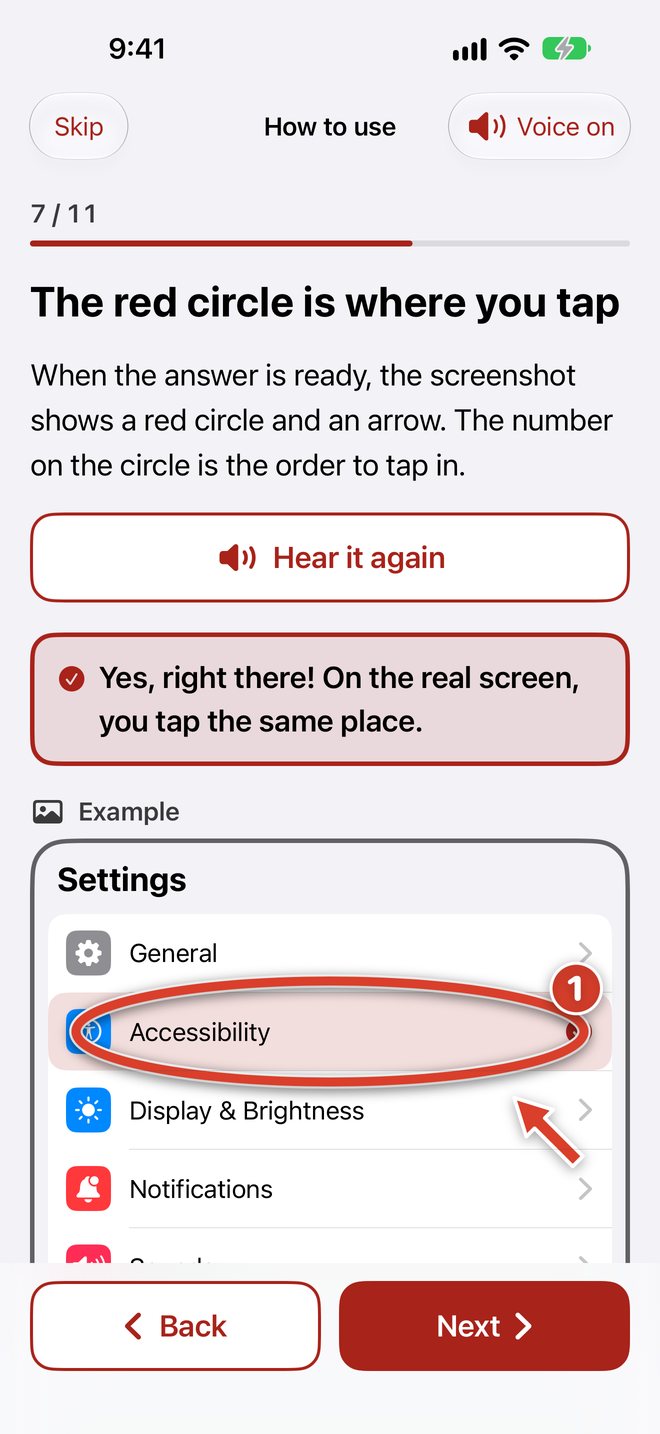
Just show a screenshot of the screen you are stuck on. Tap Here marks the place to tap with a red circle, a number, and an arrow.
No more trying to explain "the gear icon at the top right…" over the phone.
iOS 18 or later, Android 8 or later
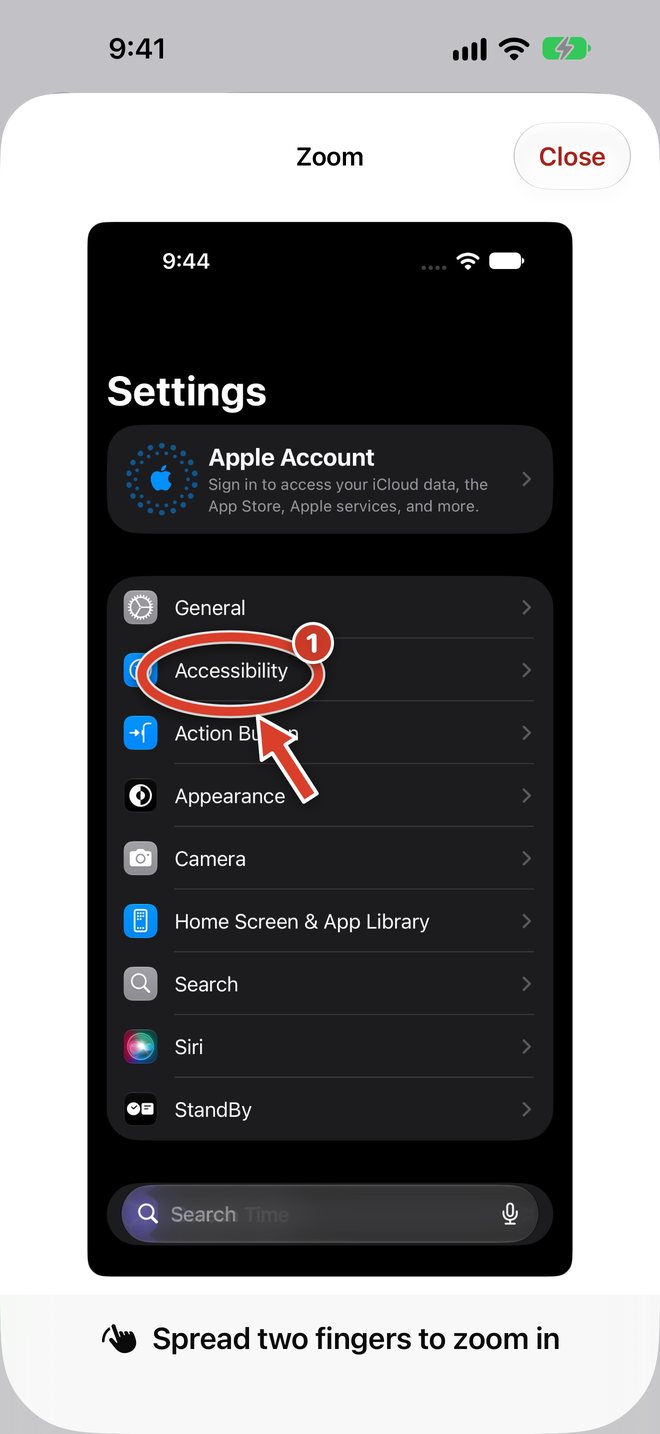
Just three steps
-
Take a screenshot of the screen you are stuck on
On iPhone, press the side button on the right and the volume up button on the left at the same time, then quickly let go.
On Android, press the power button and the volume down button on the right side at the same time, then quickly let go.
-
Choose that screenshot in this app
You can also write what you want to do, such as "I want bigger text", for more detailed steps. It is fine to leave it blank.
-
Tap where the red circle is
Tap the same place on the real screen.
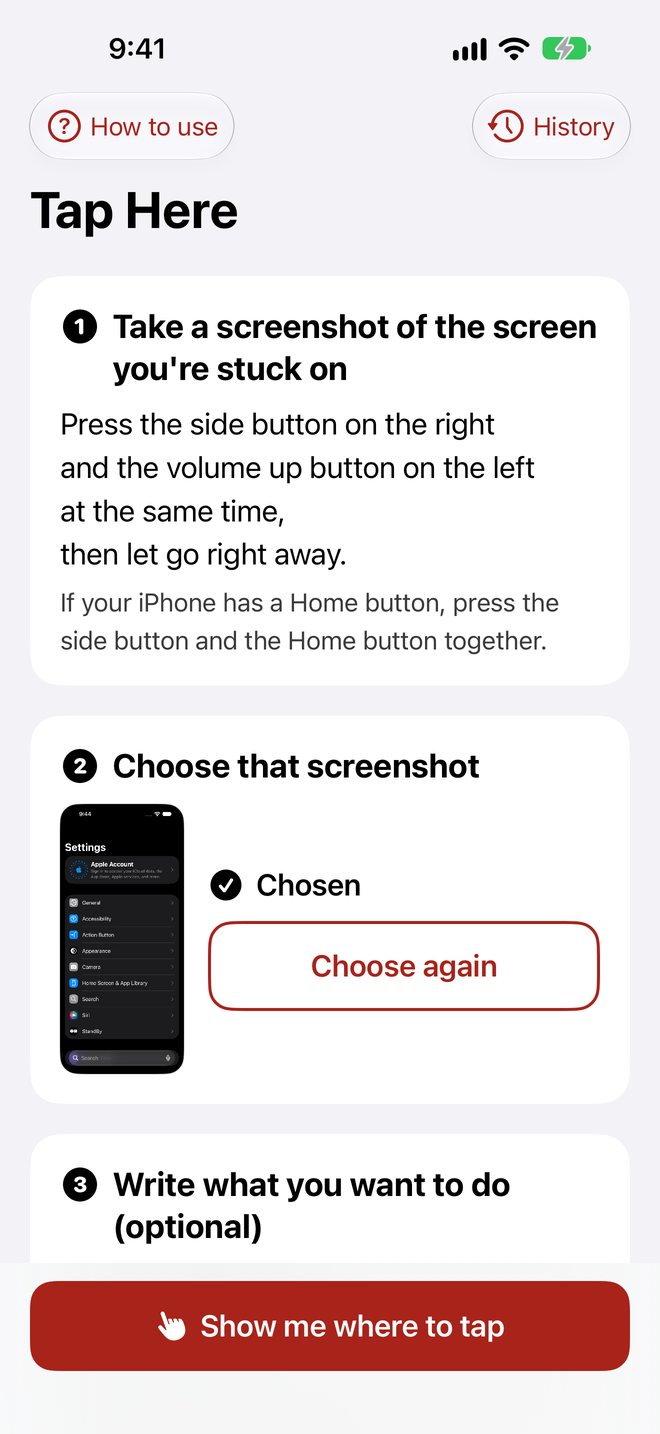
One step at a time, read aloud
- Steps are shown one by one. Tap "Next" to see the next place to tap
- Each step is read aloud (you can turn this off)
- If it is too small to see, zoom in on the screenshot
- When the screen changes, show a screenshot of the new screen. The app remembers what you want to do and continues from there
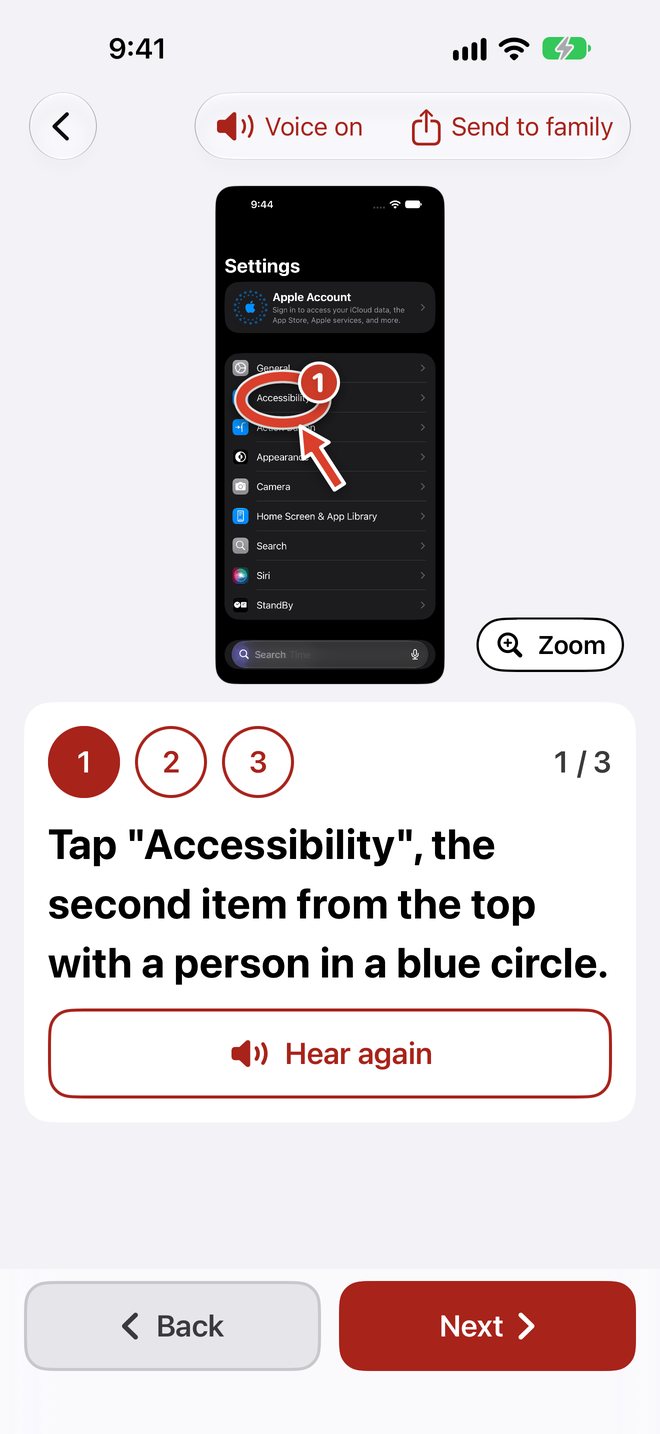
A "Caution" note on suspicious screens
Screens that ask for money or a PIN, or fake virus warnings, are marked with a "Caution" note. If you are not sure, ask your family before you tap.
The AI can make mistakes.
If something seems wrong, stop and ask your family before you tap.
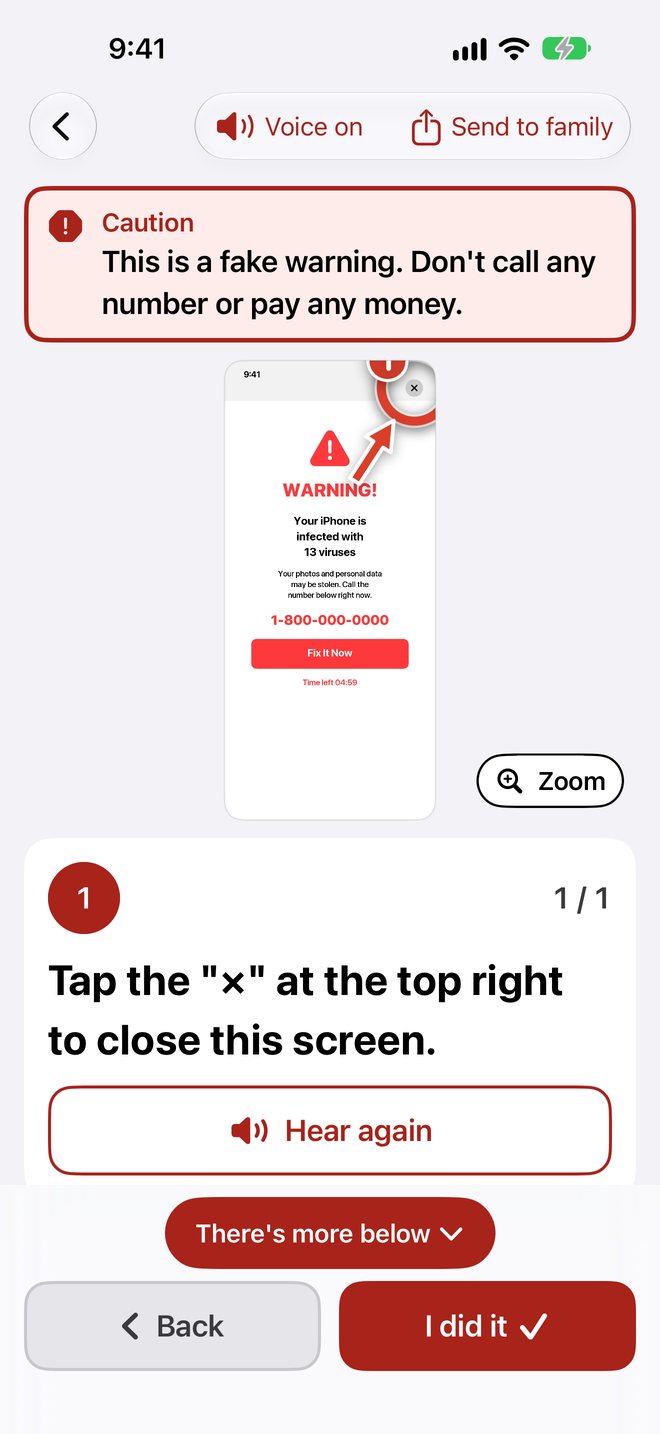
Easy to share with family
- Send the picture with the circles to your family in a messaging app and talk it through while looking at the same screen
- A short welcome guide lets you practice taking a screenshot and tapping the red circle. You can see it again anytime
- Guides are saved on your phone, and you can add memos to look back on later
Easy to see and tap
- Large text, strong contrast, and big buttons
- The text follows your phone's text size setting
About the screenshots you show
Screenshots are sent to AI (Claude by Anthropic) only to work out where to tap, and are not stored on our server.
Please do not show screens with a PIN, a password, or a card number.
Your saved guides stay only on your phone. See the Privacy Policy for details.
Price
A plan is needed to use the app. There are no ads.
The first 7 days are free
- You pay on Apple's or Google's screen. You never enter your card number in this app
- You can ask up to 100 times a day
- Plans renew automatically unless canceled before the end of the current period (on iPhone, at least 24 hours before)
- Cancel anytime: on iPhone in Settings > your name > Subscriptions, on Android in the Google Play Store > your profile icon > Payments & subscriptions > Subscriptions. If you cancel during the free trial, you will not be charged
- Family Sharing is not supported
- Prices are in Japanese yen. The App Store and Google Play show the price in your country's currency